The information on this page refers to License Statistics v7.2 and newer, which modified the UI for working with License Statistics feature reports. If you are using a version previous to v7.2, see documentation for previous versions. |
This page gives details about general usage of feature reports, including how to select the license server and feature to view, identify feature version/type; control feature visibility, and edit features.
Selecting license servers and features to view
All feature usage pages include an area at the top of the page that allows you to select the license server and feature you want to view.
To choose the feature for which to view statistics, use the License Server and Feature pick lists in the general information area. You can select either an individual license server or a license server group from the License Servers pick list. After selecting the license server/license server group, the Feature pick list will then contain all features within that license server/license server group for you to choose from. Some pages also let you select "All" license servers/features for viewing.
This area also lets you filter the report results as applicable to the report. For example, in the illustration below, the report is filtered to show the current month, grouped by day.

Viewing general feature information
General information for the currently selected feature (which can be edited as described below) is shown at the top of the page, including:
- The feature's name, version, and type (see Feature identifiers, below).
- Information about the feature, such as statistics totals and the last update time.
- A current count of licenses used, borrowed and reserved, and (if not unlimited) the total number of licenses and the total available licenses remaining (the total licenses minus the number of used and reserved licenses).
Last update time
The color coding of the text used for "Last Update Time" (shown in green in the above illustration) indicates the minutes elapsed since the last time statistics were updated:
| Minutes elapsed since last update time | Color indicator |
|---|---|
| 0 - 10 | Green |
| 10 - 20 | Orange |
| 20 or more | Red |
License usage gauges
When the total number of licenses for the feature is known (that is, not unlimited), the number of remaining available licenses is shown as "Available" in the license usage gauge.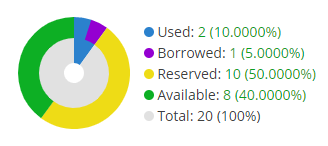
If there are unlimited licenses for the feature, the license usage gauge will not include the total or available number of licenses or utilization percentages, since they are not applicable, as illustrated below.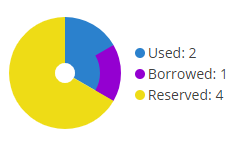
Expired feature indicators
A warning icon  next to the count of Used licenses in the general information area of Feature reports indicates that you are using old licenses that have expired. This happens in cases where:
- The feature expiration date has passed
- The count of active licenses is other than 0

A warning icon  for expired features with active licenses is also visible in the Used column of the Feature Usage grid.

Feature identifiers
Throughout License Statistics, features shown in lists include a separate entry for each version of that feature, and are named feature_version. Versioning provides a finer granularity to report results, which is useful when you have multiple versions of particular features that you want to track individually. For example, under IBM LUM, the Catia MD2 application cost varies depending on version, so Feature Versioning can help when considering budget for one version versus another version.
Feature names in lists also include the feature type, which can be Floating, Nodelocked, or Token. Note that if a given feature has more than one type, it will be listed once for each type.
For example, say you have a feature called F1, for which you have a floating installation of version 1.0 and both a node-locked and floating installation of version 2.0. This would appear in Feature lists as follows:
F1 (v1.0, Floating)
F1 (v2.0, Floating)
F1 (v2.0, Nodelocked)
In grids such as License Server Current Usage, feature identifiers are displayed in three separate columns: Name, Version, and Type. If a given feature has more than one type, it will be listed in usage grids once for each type.
Hiding a feature
You can hide the currently selected feature by clicking the Options icon to the right of the Feature pick list, and then selecting Hide from the Options menu. You will be prompted to confirm hiding the feature.

For more information on controlling visibility of features, see Hiding and showing features. Feature visibility may also be set for a user's account as described in Managing License Statistics user accounts.
Editing a feature
You can edit the currently selected feature by clicking the Options iconto the right of the Feature pick list, and then selecting Edit from the Options menu.
The Edit Feature dialog opens.

Using the Edit Feature dialog, you can enter/edit the following optional information for the feature:
| Field | Description |
|---|---|
| Display Name | A name for the feature that will be shown in reports. The actual feature name (reported by the license server, and shown in the Name field in this dialog) will be shown in reports if the Display Name is unspecified. |
| Display Version | A version for the feature that will be shown in reports. The actual feature version (reported by the license server, and shown in the Version field in this dialog) will be shown in reports if the Display Version is unspecified. |
| Description | A description for the feature that will be shown in reports. |