| The information on this page refers to LM-X License Manager v6.2 and newer, which added support for Visual Studio 2026 and dropped support for MinGW 32 bit. |
The following steps are designed to help you compile the LM-X SDK on Windows in 5 minutes or less, using either Visual Studio or MinGW.
By default, when you finish installing the SDK, Visual Studio opens to let you compile the SDK. We recommend that you use the project files and perform the Build, Clean and Rebuild actions within the IDE as described below to compile and recompile the SDK. Alternatively, you can compile the SDK from a command line using nmake or MinGW.
If you are upgrading LM-X, remember to copy your LM-X security configuration file from a previous LM-X installation to the config directory. (In LM-X SDK versions older than 4.2, the security_config.lmx file was named based on your vendorname.lmx file.)
If you encounter any problems related to compiling the SDK, see Installation issues for troubleshooting help.
Compiling the LM-X SDK using Visual Studio
To compile the LM-X SDK using Visual Studio:
Step 1. Copy your LM-X SDK lmx.lic file to the config directory.
Step 2. If needed, extend or modify the behavior of the license server during compilation by editing the lmx_server_conf.c file.
Step 3. Run Visual Studio.
To run Visual Studio, either:
- Click Finish at the end of installing the LM-X SDK on Windows, which automatically opens Visual Studio,
or - Double-click on the appropriate Visual Studio solution file, as shown below:
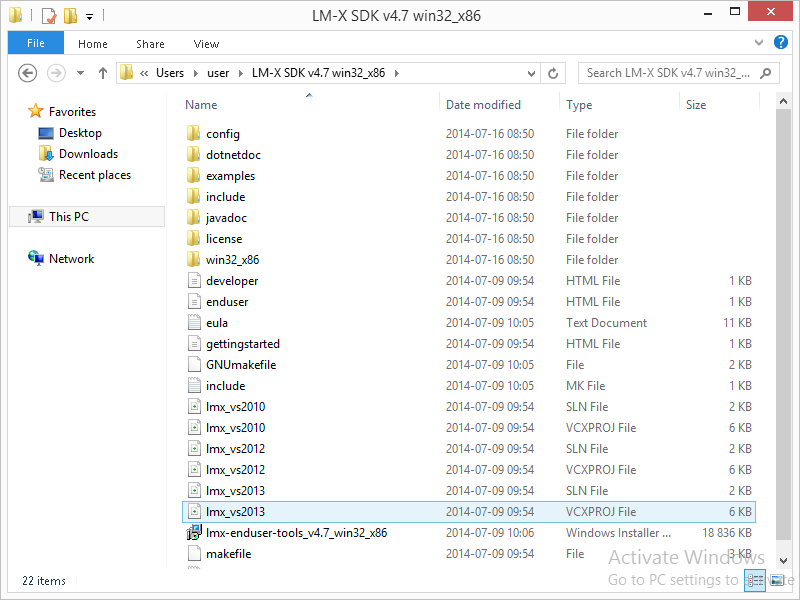
Note: Make sure the config directory includes the license file.
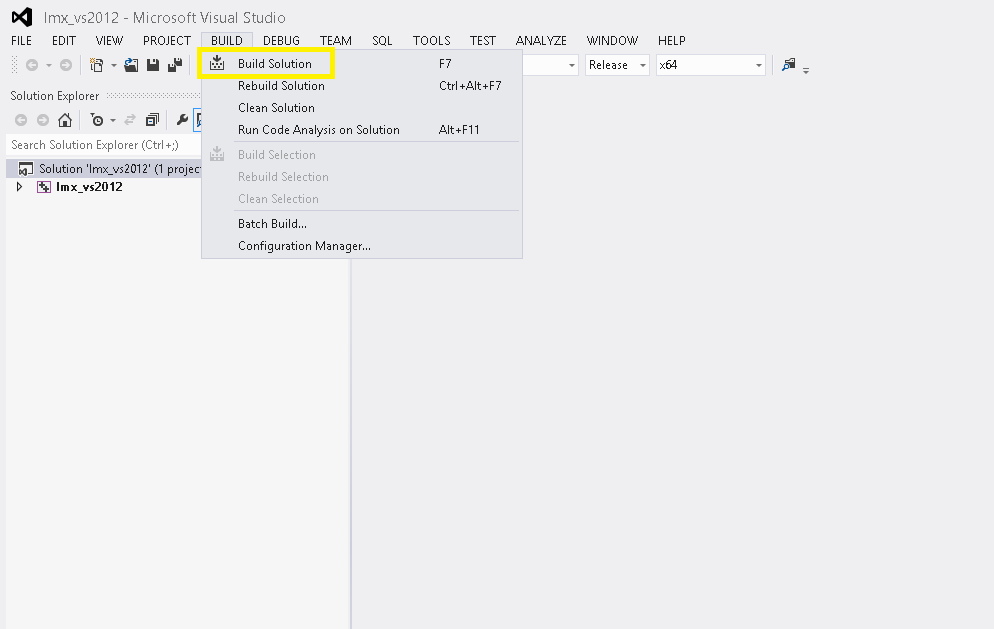
Step 4. Click the Build tab, and then select "Build Solution" from the tab options.
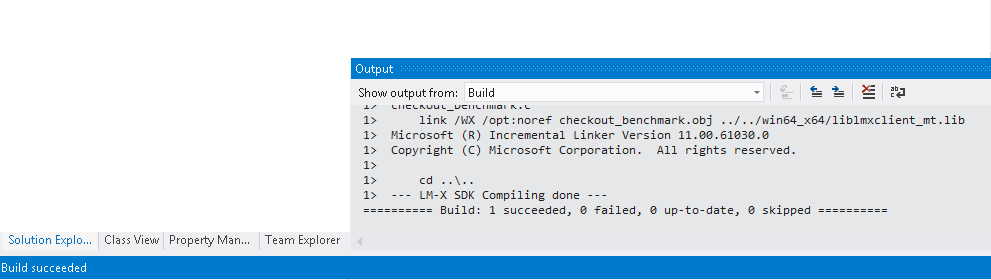
When the compilation is successfully completed, you will see a "Build succeeded" message on the Visual Studio status bar, as shown below.
Compiling the LM-X SDK from a command line using Visual Studio
As an alternative to using cmd.exe as described below, you can use the Developer Command Prompt for Visual Studio.
To compile the LM-X SDK from a command line using Visual Studio:
Step 1. Open a command prompt.
Step 2. Configure the environment for building code with MSVC.
For example:
C:\Users\user\LM-X SDK v6.2 win64_x64> call %PROGRAM_FILES%\Microsoft Visual Studio 18.0\VC\bin\amd64\vcvars64.bat
Step 3. From the root directory of the LM-X distribution, run nmake.
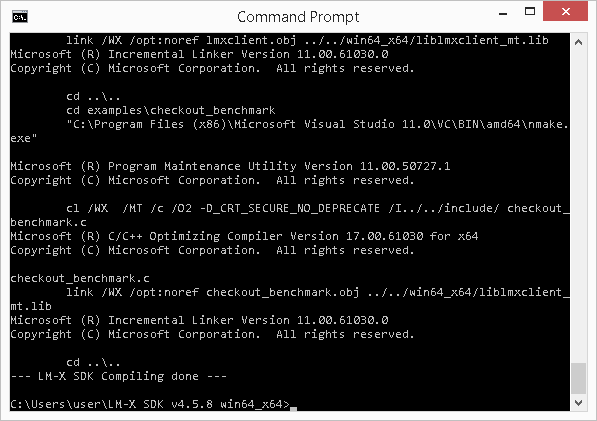
You must run nmake from the SDK root directory. Running nmake from a subdirectory may produce error messages and fail.
Cleaning the LM-X SDK using Visual Studio
To clean previously compiled files (for example, when rebuilding the SDK with a different license or security key) using Visual Studio, run the following command.
C:\Users\user\LM-X SDK v4.5.8 win64_x64> nmake clean
Compiling the LM-X SDK using MinGW
When compiling the LM-X SDK using MinGW, make sure Cygwin is installed on your machine. Also, please review the MinGW-specific requirements and limitations described in Supported platforms.
To compile the LM-X SDK using MinGW:
Step 1. Open a command prompt.
Step 2. Set the environment variable.
C:\Users\user\LM-X SDK v6.2 win64_x64>set PATH=c:\mingw64\bin;%PATH%
The path for mingw32-make may vary depending on the machine and architecture being used.
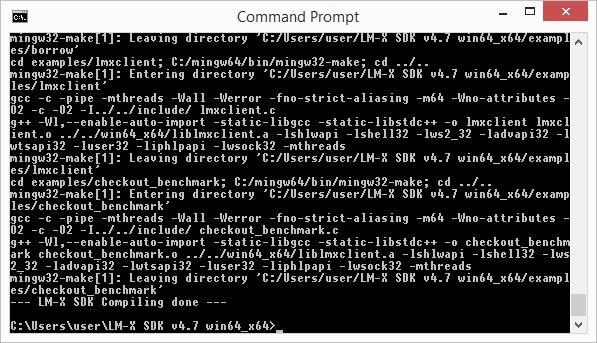
Step 3. From the root directory of the LM-X distribution, run mingw32-make.
Cleaning the LM-X SDK using MinGW
To clean previously compiled files (for example, when rebuilding the SDK with a different license or security key) using MinGW, run the following command.
C:\Users\user\LM-X SDK v6.2 mingw64_x64> mingw32-make clean