The information on this page refers to License Statistics v7.1 and newer, which introduced metadata uploading using a new Metadata tab in the License Servers page. |
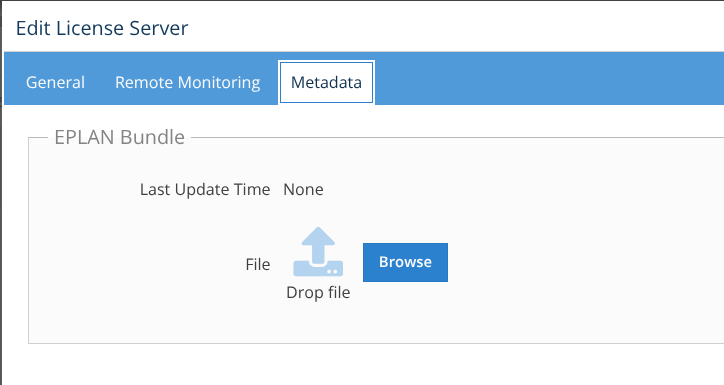
You can upload metadata for Autodesk or EPLAN LM license managers using the Metadata tab in the License Servers page, found under the Administration section. (This page is visible only for License Statistics administrator users.) Uploading metadata should be used only when it is not possible to obtain the data from remote sources automatically using remote monitoring or importing. Metadata upload is available only for EPLAN LM and Autodesk license manager types.
- For EPLAN LM, you upload EPLAN bundles that contain metadata
- For Autodesk, you upload a CSV file containing metadata that has been exported from your Autodesk server
After uploading the metadata file, any supported source (remote or end-user) will use the metadata to improve the quality of information gathered from that server, including details about current reservations and features and the number of licenses.
Typically, the metadata is quite static. However, note that the metadata must be re-uploaded whenever the server configuration changes (for example, there are new rules or licenses have changed). The last time the file was uploaded is visible on the License Server page's Metadata tab.
Imported License Servers grid
The Imported License Servers grid in the License Servers page includes information for all currently configured imported license servers, including:
| Column Name | Description |
|---|---|
| License Server | The display name for the license server. |
| License Server ID | The ID of the license server. |
| License Server Description | The optional user-defined description for the license server. |
| Hostname | The hostname of the license server. |
| License Manager | The license manager type. |
| Last Import Time | The last time the license server data was imported. |
Some columns are hidden by default. To control the visibility of columns, see instructions for filtering grid content.
Adding or editing an imported license server
To add or edit an imported license server:
- To edit the settings for an imported license server, click the Edit icon in the Imported License Servers grid row for the license server you want to change. An Edit License Server dialog opens to allow you to change the existing settings for that license server.
or
To add a new license server, click Add at the bottom of the Imported License Servers grid. An Import License Server dialog opens. - Click Select file... to browse for and import the new license server.
- After selecting the license server file, click Import. You can click Close at any time if you do not wish to import the file.
- Edit the license server settings if needed, as described below.
Imported license server settings
The editable Imported License Server settings are described below.
| Setting | Description |
|---|---|
| General settings | |
| Name | The name for the license server that will be displayed in License Statistics. This can be any descriptive, unique name that helps you identify the license server in License Statistics pages. |
| Description | An optional description for the license server. |
| Vendor settings | |
| Vendor Display Name | An optional name that will be displayed for the imported license server on reports. |