...
The information on this page refers to License Statistics v6v7.24 2 and newer, which changed "LDAP" labels to the generic label "User Directory." added an option to cache User Directory account passwords. If you are using a version previous to v6v7.242, see documentation for previous versions. |
To access User Directory configuration settings, select User Directory under the Administration section. (This page is visible only for License Statistics administrator users.) The following sections describe how to configure User Directory using the configuration page. Also see Importing User Directory user groups for more details on this topic.
Setting up a connection to a User Directory
To set up a connection to a User Directory, in the General section of the User Directory configuration page:
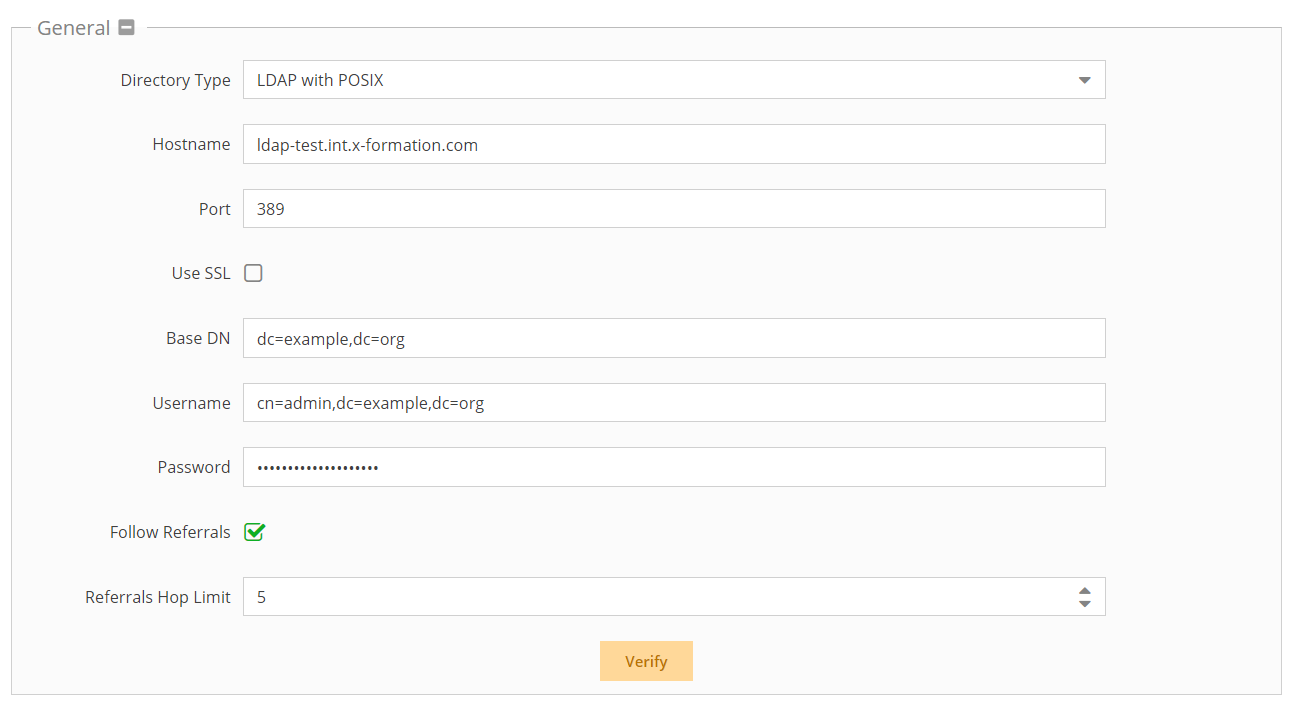
- Enter the appropriate information for connecting to your User Directory server. (An example setup is shown in the screenshot below.)
- Directory type: Select from Active Directory (default), LDAP, or LDAP with POSIX. Your selection will populate the schema settings with the defaults for that selection, which can then be customized if needed.
- Hostame: The hostname of the User Directory server.
- Port: The port for the User Directory server. The default is 389.
- Use SSL: Check this box if you would like to connect to your User Directory server over SSL protocol. If using SSL, see Enabling User Directory over SSL for further setup information.
- Base DN: The base DN (Distinguished Name) under which to search for users and groups. (See Testing User Directory settings for more information on obtaining the base DN.)
- Manager DN: The DN for the manager account to be used for initial binding (authentication).
- Password: The password for the manager account.
- Follow Referrals: Check this box to use follow referrals, which allows navigating through the User Directory tree structures to find information that may be split into multiple servers. Note that enabling this setting may decrease performance. See https://httpd.apache.org/docs/trunk/mod/mod_ldap.html#ldapreferrals for detailed information about follow referrals.
- Referrals Hop Limit: Sets the limit on the number of referral hops to perform before the User Directory query is terminated. A higher Referrals Hop Limit lets you search more deeply for information on large networks, but reduces performance.
- Click Verify to ensure that your connection to the User Directory server works as expected. A message will indicate whether the test was successful. If the test is not successful, make the needed changes to the setup, save the changes, and retest the connection. (See Testing User Directory settings for more information on verifying your User Directory settings.)
- Click Save at the bottom of the User Directory page to save the User Directory configuration.
Anchor enableLDAPImport enableLDAPImport
Enabling User Directory import
| enableLDAPImport | |
| enableLDAPImport |
License Statistics lets you import user details and groups you have defined in a User Directory. Importing your user groups from User Directory eliminates the need to create user groups manually, which can be time consuming if you have a large number of users. For more information, see Importing User Directory user groups.
...
| Info |
|---|
Note that not all users matching the Base DN will be imported, but only those that were already monitored by License Statistics. Also, a group will be imported from User Directory only if it contains at least one user that is monitored by License Statistics. Example: Say you have the following users and groups in your configuration:
Given this scenario, License Statistics will import:
License Statistics will not import:
|
Anchor autoAcctCreationLDAP autoAcctCreationLDAP
Enabling User Directory authentication
| autoAcctCreationLDAP | |
| autoAcctCreationLDAP |
You can enable License Statistics user authentication and optionally allow for automated automatic License Statistics user account creation and password caching using the user accounts you already have defined in existing user account data from a User Directory directory.
Enabling account creation using a User Directory eliminates the potentially time-consuming task of adding users manually in License Statistics. With the User Directory authentication option enabled, users simply log into License Statistics using their username and password that is stored in the User Directory, regardless whether the user has an account in License Statistics.
| Info |
|---|
If User Directory authentication is enabled, you can also use User Directory |
...
authentication when creating new users. If User Directory authentication is enabled and then subsequently disabled, users who have already logged into License Statistics using a User Directory will retain the ability to use their login, but no new login attempts using User Directory user accounts will be possible. |
To enable user authentication using a User Directory:
- Check the "Enable User Directory Authentication" checkbox.

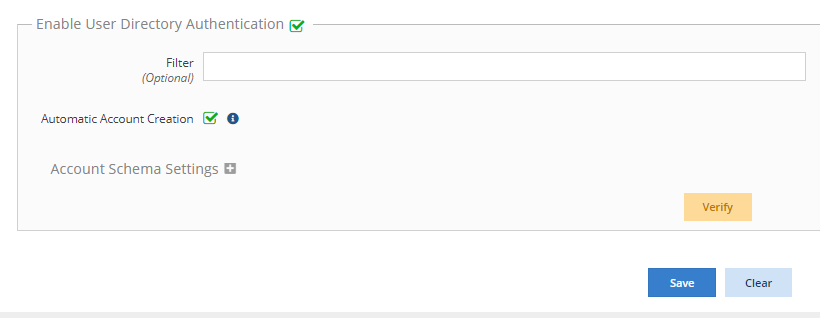
Optionally, you can enter use a filter that to limits imit the accounts that are allowed to authenticate be authenticated and are automatically created.
Info icon false title Examples Default query with empty optional filter and username foo:
Code Block &(objectClass=user)(sAMAccountName=foo)
Query with optional field applied (filter value: memberOf=admin) and username bar:
Code Block &(&(objectClass=user)(sAMAccountName=bar))(memberOf=admin)
- Optionally, check the "Allow Password Caching" checkbox to enable password caching.
Info By default, the "Allow Password Caching" option is disabled. It is only automatically enabled in cases where License Statistics has been migrated from a previous version with User Directory enabled, in order to maintain backward compatibility.
When password caching is disabled, the password will not be stored in the License Statistics database. Therefore, if a connection cannot be made to the User Directory server, authorization will fail.
- When password caching is enabled, the password will be stored in the database and can be used for 30 days from the last successful user authorization (for example, in case the User Directory server is unavailable).
- You can enable/disable password caching at any time.
Optionally, check the "Automatic Account Creation" checkbox if you want to automatically create accounts to allow user accounts to be created automatically using a User Directory.
Info If "Enable User Directory Authentication" is selected and " - By default, the "Automatic Account Creation"
- option is disabled.
- When automatic account creation is disabled, all users that have accounts connected to a User Directory will be authenticated, but no new accounts will be created, even if the User Directory credentials are valid
- .
- Enter/edit the schema settings if needed for your configuration.
- Click Verify to ensure that your connection to the User Directory server works as expected. A message will indicate whether the test was successful. If the test is not successful, make the needed changes to the setup, save the changes, and retest the connection.
- When you have completed all User Directory configuration settings, click Save at the bottom of the User Directory page to save the configuration.
...