...
The information on this page refers to License Statistics v6v7.19 2 and newer, which introduced the ability to remotely close sessionsmodified the UI for working with License Statistics feature reports. If you are using an earlier version, please refer to the documentation for earlier versions. |
The Sessions page under the Features: Realtime section in the left navigation pane shows currently open sessions and realtime usage statistics for the currently selected license/server feature or all license servers.
Use the License Server and Feature pick lists in the General Information area at lists at the top of the report to select specific license servers and features for which to view current usage. You may also choose to view all license servers, or all features for a selected license server by selecting "All" from the pick lists. (When "All" is selected from the License Servers pick list, feature selection is unavailable.)
...
The top section of the Realtime Sessions report contains a Realtime License Usage graph that gives you a visual picture of the number of licenses currently in use, and by which users, giving you instant understanding of highest license usage per user.
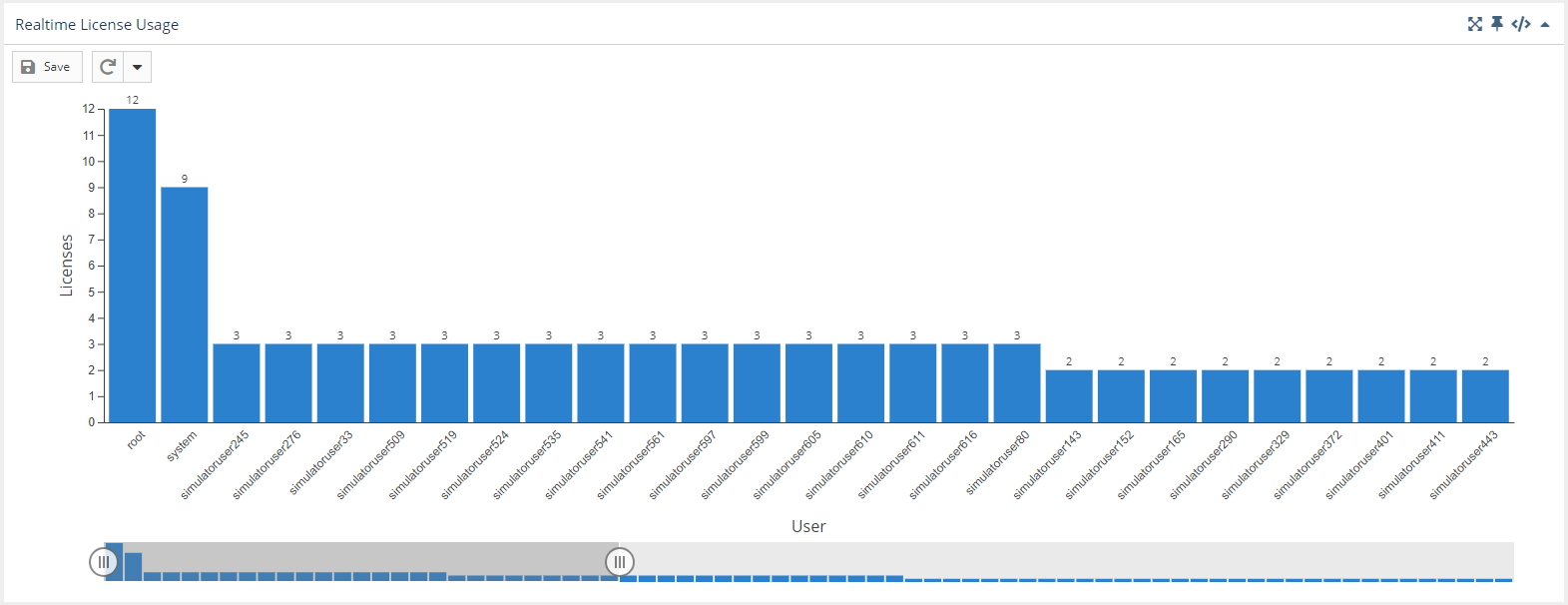

The slider at the bottom of the graph lets you restrict the results to the users you want to focus on (for . For example, you might use the slider to view only those the users with more than 1 license the most licenses in use), as shown above.
If you select a license server/feature for which there is no realtime data, a popup with a link to view the history data for that license server/feature will appear in the upper right corner of the window.
...
The Realtime Sessions grid includes the user and host on which the selected feature is checked out, how many licenses that user has checked out, the checkout time (sStart) and how much time has elapsed since checkout (Duration), and for any borrowed licenses, when the borrow time expires.


Using this grid, you can see information such as:
...
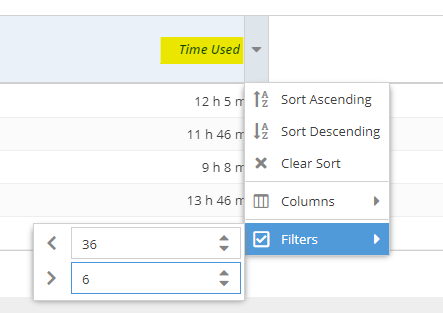
To see current usage by time range in the Realtime Sessions grid, make sure the "Time UsedDuration" column is visible, and filter by the desired time range. For example, you can filter by less than 5 days and greater than 6 hours and less than 36 hours to see all results that are within this time range, as illustrated below. You may also set a particular time to view using the "=" filter.

Anchor hosts hosts
Current usage on multiple hosts
| hosts | |
| hosts |
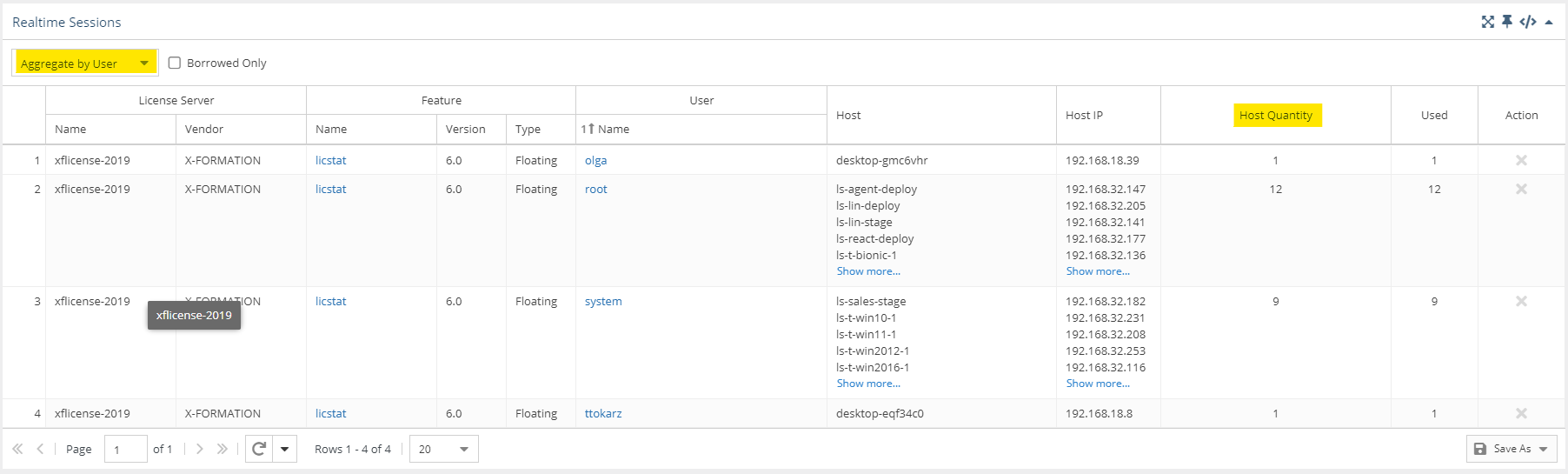
To see current usage occurring on multiple hosts in the Realtime Sessions grid, aggregate the report by user, and ensure the "Host QtyQuantity" column is visible.

| Anchor | ||||
|---|---|---|---|---|
|
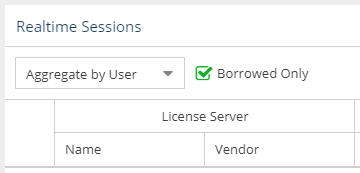
To see currently borrowed licenses, toggle on "Borrowed Only" at the top of the Realtime Sessions grid.

Remote session closing
You can remotely close a session using by clicking on the "X" in the Action column at the right end of the session's row in the Realtime Sessions grid.
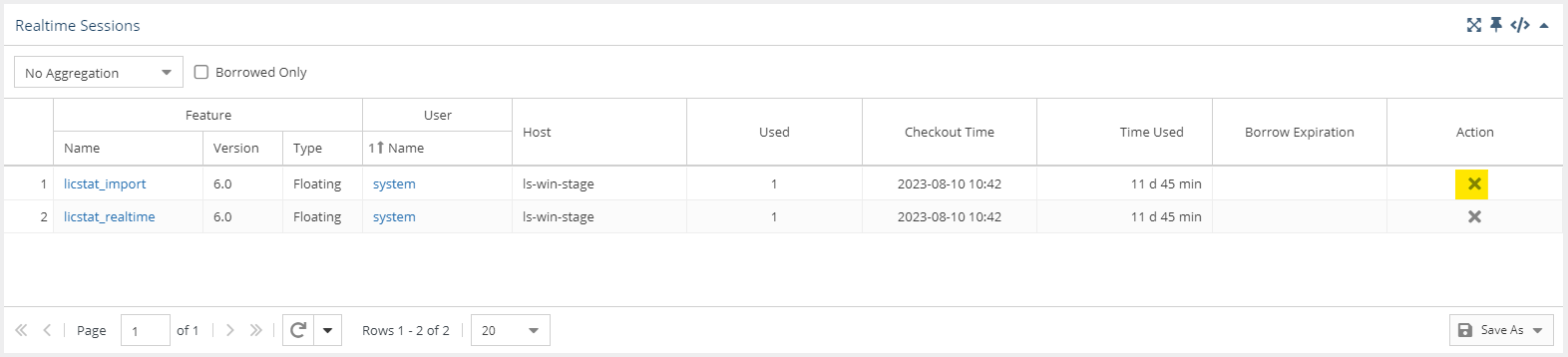

Similar to closing sessions using License Harvesting, when you manually close an application on the end-user host, License Statistics will automatically force the session to release on the corresponding license server and return the license to the available pool.
| Info |
|---|
| This setting is applicable only for to LM-X and FlexNet license manager types. |
...