If you are upgrading to v6.0 or newer from a version older than v6.0, you must enable the web server, as described in LM-X license server configuration, to access the LM-X License Server UI.
You can access the LM-X License Server UI from any browser with a connection to the license server's network. The web server runs on port 6199 by default and is only accessible using HTTPS.
Replacing the SSL certificate
The first time you start the server, it automatically generates a self-signed certificate to enable HTTPS connections. You should generate a valid SSL certificate for the license server to replace this automatically generated certificate. Until you replace the certificate, you will see a warning similar to the following (the warning appears differently depending on which browser you are running):
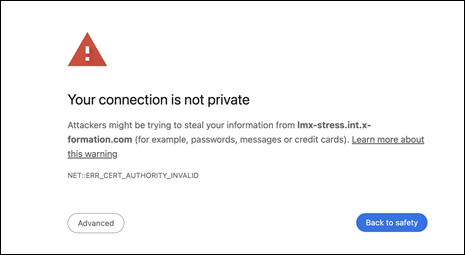
To replace the certificate, specify the paths for your SSL certificate chain and private key in the Web Server settings panel of the LM-X License Server UI's Settings page.
Initial login
Upon initial access to the LM-X License Server UI, you will be prompted to enter an admin password.
