| The information on this page refers to License Statistics v7.1 or newer, which moved EPLAN bundling from the Remote Monitoring tab to a new Metadata tab in the Add/Edit License Server page. If you are using a version previous to v7.1, see documentation for previous versions. |
When creating or editing an EPLAN LM license server, you have the option of importing an EPLAN bundle (a ".4elm" file). If a ".4elm" file is not uploaded, the default configuration (no sharing) will be used. Although optional, uploading a bundles configuration file is recommended to ensure License Statistics correctly calculates usage totals and other statistics, especially when using licenses shared between the bundles.
- Go to the License Servers page, found under the Administration section in the left navigation menu.
- Add or edit the EPLAN LM license server, as applicable. If you are unfamiliar with managing license servers, see Adding and editing license servers for more details.
- Using the Metadata tab in the Add/Edit License Server page, locate and upload a ".4elm" file that has been generated by the EPLAN client.
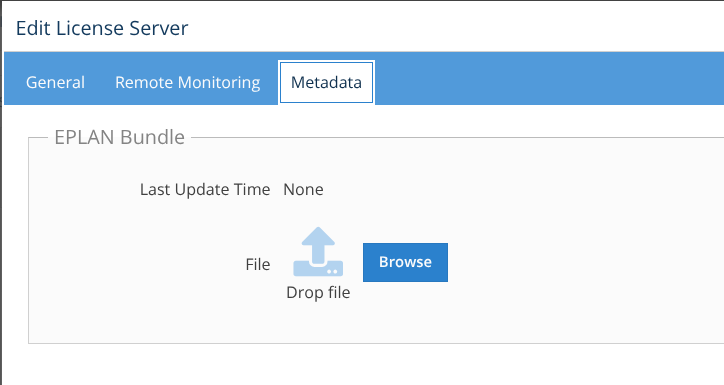
License Statistics will automatically include the uploaded metadata in all future reporting. - If the server configuration changes (for example, there are new rules or licenses have changed), repeat the above steps to re-upload the metadata. The last time the file was uploaded will be shown in the Metadata tab.
Note that the ".4elm" file:
- Must be a text file containing a [Bundles] section
- Cannot be larger than 1 Mb
For information on creating, managing and exporting EPLAN bundle files, see the official EPLAN documentation.