...
The information on this page refers to License Statistics v6v7.23 3 and newer, which added cache management to removed cache invalidation from the Administration: Data Management page (now available only from the Cache tab in the Administration: License Servers page) and added an "invalidate cache" action for individual license servers. If you are using a version previous to v6v7.233, see documentation for previous versions. |
Cache invalidation is a process that clears the reports cache, which X-Formation Support may advise for helping to resolve inconsistencies in cached data. In addition to clearing cache from the Administration: Data Management page as described below, License Statistics system administrators may also can check cache status and clear cache from the Cache using the Cache tab in the Administration: License Servers page.
| Warning |
|---|
Clearing Invalidating the cache should be done with caution. Clearing the reports cache is usually performed only when requested by X-Formation Support to help resolve inconsistencies in cached data. Although clearing invalidating the cache is in itself a quick process and no data will be lost, reports will be unavailable while the cache is re-created, which may take a few hours for larger databases. |
To clear cache:
You can invalidate the entire cache or the cache for individual license servers, as described below.
- Open the Cache tab in the Administration: License Servers page.
- To invalidate the entire cache, click the Invalidate button, located above the License Servers Cache Status grid.

OR
To invalidate the cache for individual license servers, click the broom icon in the Action column of the License Servers Cache Status grid.
- For both methods of invalidating the cache, you
- Select the Data Management tab from the Administration page. (This page is visible only for License Statistics administrator users.)
- Under the Cache Invalidation section of the Data Management page, click Clear Cache.
You will be prompted to confirm clearing the cacheaction.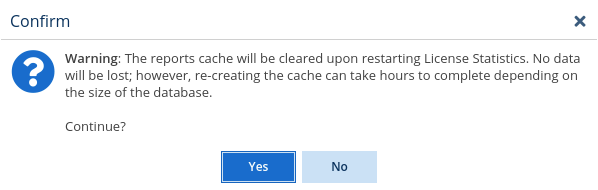
- Click Yes to confirm the cache invalidation operation, or click No to cancel it.
...

- If you are invalidating the entire cache, the invalidation is scheduled for the next time License Statistics is restarted, and the message illustrated below appears in the Cache
...
- tab of the
...
- License Servers page.
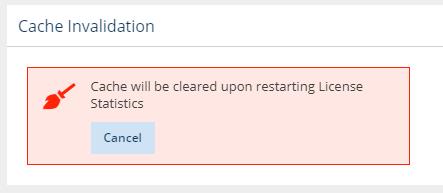
You can cancel the cache
...
- invalidation any time before License Statistics is restarted by
...
- clicking Cancel from the cache invalidation message.
...
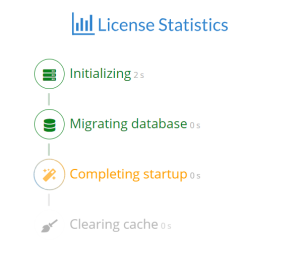
After restarting License Statistics, the initialization screen displays the progress of the cache invalidation procedure.