...
The information on this page refers to License Statistics v7.0 4 and newer, which added introduced the ability to add administration reports to have multiple dashboards and introduced dashboard management features. dashboards and added an "Administration Reports" dashboard template (available only for administrative-level users). If you are running an older version of License Statistics, see documentation for previous versions. |
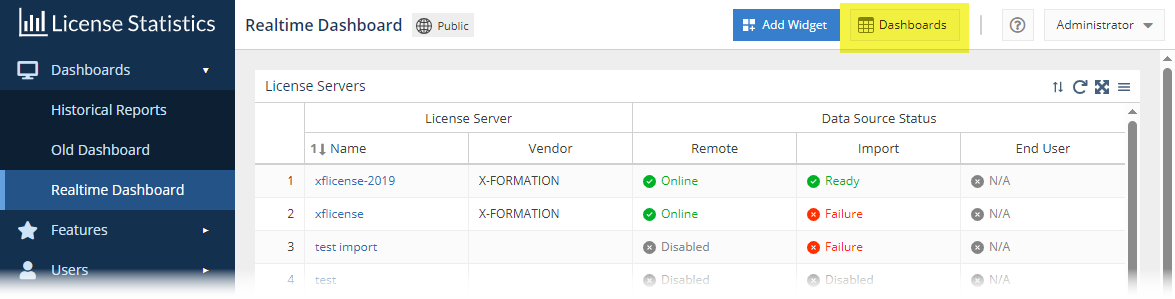
To access management options for your dashboards, click the Dashboards button at the top of the any Dashboard page.
The Manage Dashboard Dashboards page opens, with a list of all accessible dashboards.
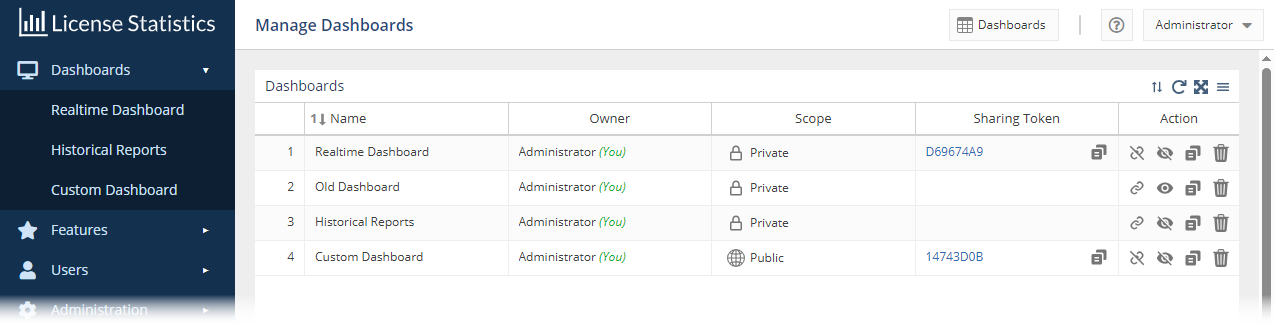
You can use the Manage Dashboards page to:
- Add new dashboards using a template
- Clone existing dashboards
- Control private/public access to dashboards
- Create and share links to dashboardsClone existing dashboards
- Add and remove dashboards from the Dashboards menu
Using the Manage Dashboards page is described in the sections below.
| Anchor | ||||
|---|---|---|---|---|
|
You can add as many new dashboards as you like. New dashboards are based on predefined templates, including a choice of realtime, historical or administrative reports, or a blank template. (In addition to adding new dashboards from templates, you can copy existing dashboards, as fits your needs.)
| Note |
|---|
Administrative reports are available only for users with administrative access to License Statistics. Standard users are unable to view the data in Administrative reports in any dashboards available to them. |
To add a new dashboard:
- Click the
+(plus sign) at the bottom of the Dashboards list in the Manage Dashboards page. - A dialog will open to let you select a template to base your new dashboard on.
- If desired, change the name of the dashboard (you can change the name anytime after creating the dashboard, as described below in Renaming dashboards).
- Select the desired template.

- Click Save.
The dashboard is added to the Dashboards list and can be managed as described in the following sections.
| Anchor | ||||
|---|---|---|---|---|
|
You can copy an existing public or private dashboard by clicking the Copy icon in the Action column. A popup message will verify that the action has taken place, and the new dashboard will be added to your Dashboards grid.
All copied dashboards are created as a private copy of the original dashboard, owned by the user who copied it. You can adjust the settings of your copied dashboards in the same way as any other dashboards you own. Copied dashboards are named "<original_dashboard_name> - Copy" by default. You can change the name as described below in Renaming dashboards.
| Anchor | ||||
|---|---|---|---|---|
|
You can change a dashboard name at any time by clicking on the Dashboard name in the Dashboards grid and typing the new name.
- You can use any name that helps you to identify the dashboard
- Dashboard names do not need to be unique
- You can change the dashboard name only for dashboards you own
- When a dashboard owner changes the name of a public dashboard, the name will automatically update in all users' Dashboards grid in their Manage Dashboards page (a browser refresh may be needed to see the new name)
Deleting dashboards
To delete a dashboard, click the Delete icon in the Action column for the dashboard you want to delete. A popup message will verify that the action has taken place, and the dashboard will be deleted.
Only the owner of the dashboard is able to delete it; if the dashboard is public, the Delete icon in the Action column is inactive.
| Anchor | ||||
|---|---|---|---|---|
|
When you open a dashboard, the scope is indicated at the top of the page, as shown in the illustration below for a public dashboard.
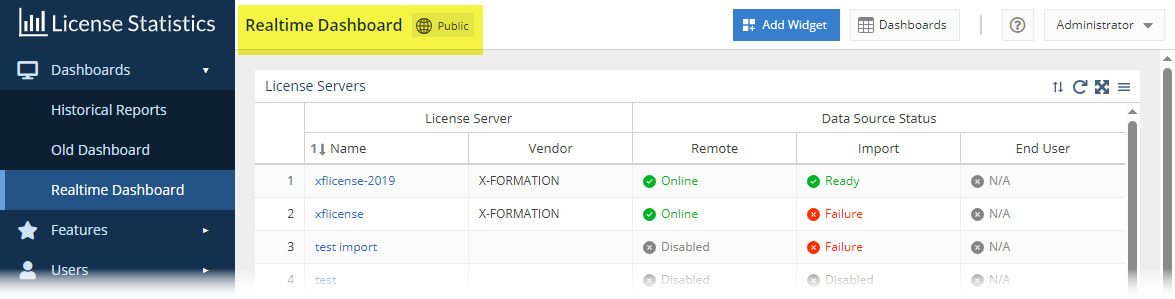
Dashboards can have a scope of either private (the default) or public.
- Private dashboards can be seen only by your user.
- You can make your dashboards public to allow other users to see them.
- Public dashboards are viewable in read-only mode by all other License Statistics users.
- The Owner column of the Dashboards grid in the Manage Dashboards page shows the owner of any dashboards that have been made public.
- You can change the scope only for dashboards that you own.
- Administration widgets are viewable only by users with administrative-level permissions, regardless of scope.
To switch the scope of a dashboard that you own between Private and Public:
- In the Manage Dashboards page, click in the Scope cell of the dashboard you want to change the scope for.
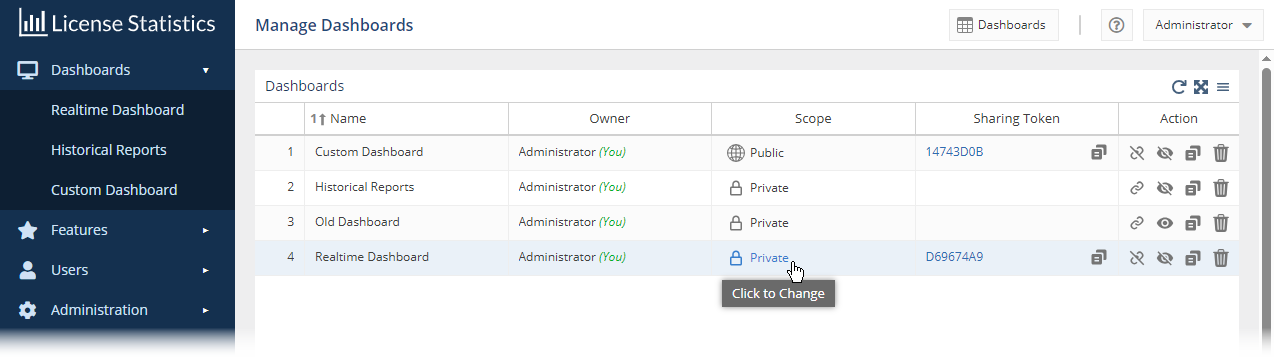
A confirmation message for switching the scope will appear; for example: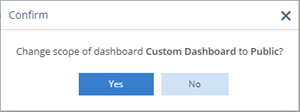
- Click Yes to confirm the scope switch.
| Anchor | ||||
|---|---|---|---|---|
|
You can allow individuals to view a public or private dashboard that you own by creating a shareable link to the dashboard. The link provides read-only access to the dashboard without requiring logging into License Statistics or any other authorization. Shareable links give you an easy way to make dashboards viewable by others, even if they are not License Statistics users. For example, you may want to:
...
You must be the owner of the dashboard to create a link to it. If the dashboard is public, the link will not be visible in other users' Manage Dashboards page, and the Link icon in the dashboard's Action column will be inactive.
To create a shareable link to a dashboard, click the Link icon in the Action column for the dashboard row you want to create a link to.
...
- You can click the link to access the read-only dashboard
- You can copy the link to the clipboard using the icon to the right of the link under the Sharing column, giving you an easy way to provide the link to others
Copying existing dashboards
You can copy an existing public or private dashboard by clicking the Copy icon in the Action column. A popup message will verify that the action has taken place, and the new dashboard will be added to your Dashboards grid.
All copied dashboards are created as a private copy of the original dashboard, owned by the user who copied it. You can adjust the settings of your copied dashboards in the same way as any other dashboards you own. Copied dashboards are named "<original_dashboard_name> - Copy" by default. You can change the name as described below in Renaming dashboards.
Deleting dashboards
To delete a dashboard, click the Delete icon in the Action column for the dashboard you want to delete. A popup message will verify that the action has taken place, and the dashboard will be deleted.
...
| Anchor | ||||
|---|---|---|---|---|
|
You can organize the Dashboards menu that appears in the left navigation bar as described below.
...
You can click and drag dashboard items shown in the Dashboards menu to reorder them.
...
You can change a dashboard name at any time by clicking on the Dashboard name in the Dashboards grid and typing the new name.
...