...
| The information on this page refers to License Statistics v7.1 or newer, which introduced the ability to upload Autodesk metadata using a new Metadata tab in the Add/Edit License Server page. |
When creating adding or editing an Autodesk license server, you have the option of uploading an archive file containing metadata that has been exported from the Autodesk server. After uploading the metadata, it will be included with all future usage data reported by License Statistics Agents. Importing a metadata file for Autodesk allows for collecting some data from Autodesk cloud, which has limitations as described in Autodesk usage monitoring.
To upload metadata for an Autodesk license server:
- Log into your Autodesk Account account (manage.autodesk.com).
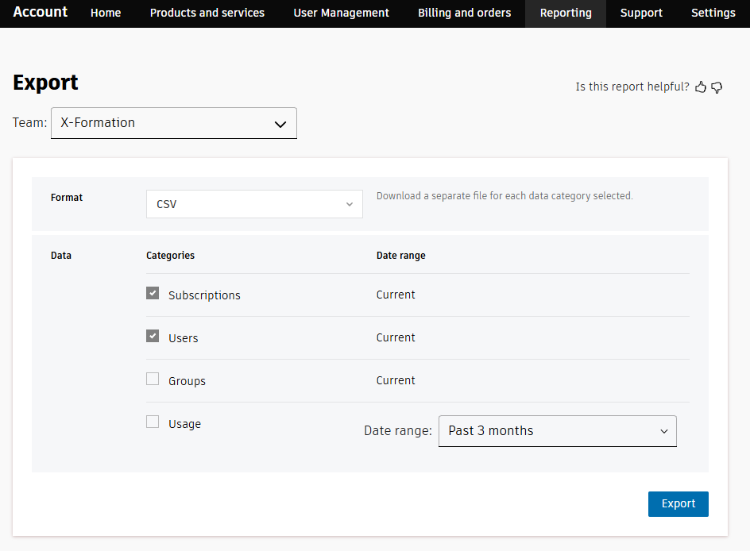
- Go to the Reporting page.
- Export data from the server in CSV format, and enable the Subscriptions and Users data categories. (Other options are not used for metadata upload to License Statistics.)
- Go to the License Servers page, found under the Administration section in the left navigation menu.
- Add or edit the Autodesk license server, as applicable. If you are unfamiliar with managing license servers, see Adding and editing license servers for more details.
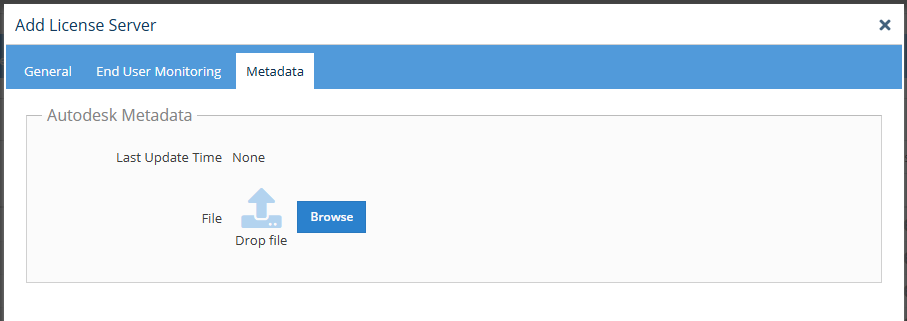
- Using the Metadata tab in the Add/Edit License Server pageUsing the Metadata tab, available when adding or editing an Autodesk server, upload the archive file you exported.
License Statistics will automatically include the uploaded metadata in all future reporting.
...