...
Using the Manage Dashboards page is described in the sections below.
| Anchor | ||||
|---|---|---|---|---|
|
When you open a dashboard, the scope is indicated at the top of the page, as shown in the illustration below for a public dashboard.
...
- In the Manage Dashboards page, click in the Scope cell of the dashboard you want to change the scope for.
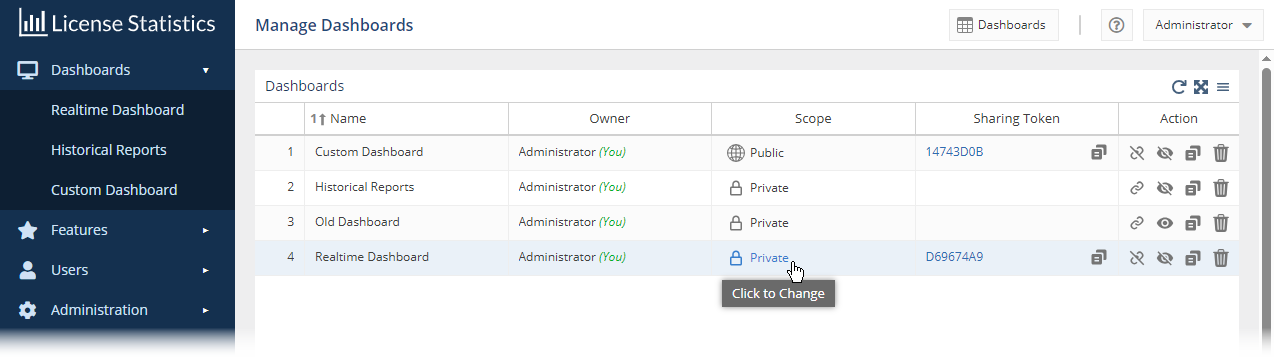
A confirmation message for switching the scope will appear; for example: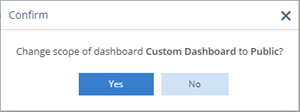
- Click Yes to confirm the scope switch.
| Anchor | ||||
|---|---|---|---|---|
|
You can allow individuals to view a public or private dashboard that you own by creating a shareable link to the dashboard. The link provides read-only access to the dashboard without requiring logging into License Statistics or any other authorization. Shareable links give you an easy way to make dashboards viewable by others, even if they are not License Statistics users. For example, you may want to:
...
- You can click the link to access the read-only dashboard
- You can copy the link to the clipboard using the icon to the right of the link under the Sharing column, giving you an easy way to provide the link to others
| Anchor | ||||
|---|---|---|---|---|
|
You can copy an existing public or private dashboard by clicking the Copy icon in the Action column. A popup message will verify that the action has taken place, and the new dashboard will be added to your Dashboards grid.
...
Only the owner of the dashboard is able to delete it; if the dashboard is public, the Delete icon in the Action column is inactive.
| Anchor | ||||
|---|---|---|---|---|
|
You can organize the Dashboards menu in the left navigation bar as described below.
...